Which note-taking app is best depends on what you need it to do: capture quick thoughts, organize research, sync across devices, write by hand on a tablet, or let a team collaborate in real time. This guide walks through the leading apps for taking notes, what each one does well, where each one falls short, and which type of user each app suits best, followed by a side-by-side comparison and a simple way to choose.


What makes a note-taking app “good”?
Before comparing individual apps, it helps to define the criteria that separate a decent app from a great one. Note-taking apps are software tools designed to capture, organize, and retrieve written information, anything from a quick reminder to a full research archive. The best ones are judged on a few consistent factors:
- Organization: how easily notes can be grouped into notebooks, folders, tags, or linked pages.
- Syncing: the ability to access the same notes across a phone, tablet, and computer without manual transfers.
- Collaboration: whether multiple people can view, edit, or comment on notes together.
- Search: how well the app finds text, including inside images or scanned documents (a feature called optical character recognition, or OCR).
- Ease of capture: how quickly a user can jot something down without friction.
- Export and ownership: whether you can get your notes out in a standard format if you ever switch apps.
With these criteria in mind, here’s how the major apps stack up.
Notion: best for structured organization
Notion is a workspace app that combines notes, databases, task lists, and wikis in one platform. Instead of simple pages, Notion uses “blocks,” modular pieces of content (text, images, tables, checklists) that can be rearranged freely.
Strengths
Notion excels at building interconnected systems: a student can link class notes to an assignment tracker, or a professional can connect meeting notes to a project database. Pages can be nested inside one another, and templates make it easy to set up recurring structures like weekly planners or research logs.
Trade-offs
The flexibility comes with a learning curve. New users often spend time figuring out how to structure their workspace before they can use it efficiently. Offline access has historically been more limited than in some competitors, and heavy databases can load slowly on mobile.
Best for: students managing multiple classes and projects, and professionals who want notes tied to tasks and documents in one system.
Evernote: best for search and archiving
Evernote was one of the earliest note-taking apps to popularize cross-device syncing and remains strong in one specific area: finding things later. Its search function can read text inside photographed documents, handwritten notes, and PDFs.
Strengths
For anyone who accumulates a large archive of clippings, receipts, or scanned pages, Evernote’s search and tagging system makes retrieval fast. The web clipper tool lets users save entire articles or webpages directly into a notebook.
Trade-offs
The free tier has become more restrictive over time, and long-time users have noted that the interface has grown busier as more features were added. It is worth checking the current plan limits before moving a large archive into it.
Best for: professionals and researchers who need to store and later retrieve large volumes of mixed-format material, such as scanned documents, images, and clipped web pages.
Microsoft OneNote: best free app for free-form notes
OneNote mimics a physical notebook: users can click anywhere on a page and start typing, drawing, or pasting content, rather than working within a fixed text column. Notebooks are divided into sections and pages, similar to tabbed binders.
Strengths
This free-form canvas is particularly useful for handwritten notes, diagrams, and mixed media, making it popular with users who take notes on a tablet with a stylus. OneNote itself is free to download, and it is included with Microsoft 365, which many students and workplaces already have.
Trade-offs
Because there’s no enforced structure, notebooks can become disorganized if a user doesn’t build their own system of sections and tags. Search works well for typed text but is less central to the experience than it is in Evernote.
Best for: students and professionals who prefer handwriting, sketching, or a flexible page layout over rigid text formatting.
Google Keep: best for quick capture
Google Keep strips note-taking down to its simplest form: color-coded sticky notes that sync instantly across devices through a Google account. There are no notebooks or deep folder structures, just notes, labels, and pins.
Strengths
Speed is Keep’s main advantage. Opening the app and typing a note takes seconds, and voice capture works well for hands-free reminders. It integrates directly with Google Docs, making it easy to expand a short note into a longer document.
Trade-offs
The simplicity that makes Keep fast also limits it for complex projects. There’s no way to nest notes hierarchically, and formatting options are minimal.
Best for: anyone who wants a fast, no-friction place for reminders, shopping lists, or short thoughts rather than long-form notes.
Apple Notes: best built-in option for Apple devices
Apple Notes comes preinstalled on iPhone, iPad, and Mac and syncs through iCloud. Over the years it has grown from a basic text pad into a capable app with folders, tags, checklists, tables, document scanning, and handwriting support on iPad with Apple Pencil.
Strengths
There is nothing to install or sign up for, capture is fast from the lock screen or control center, and shared notes and folders allow simple collaboration with other Apple users.
Trade-offs
It is designed for Apple’s own devices. Windows and Android users can only reach their notes through a web browser, which makes it a poor fit for mixed-device households or teams.
Best for: people who live entirely in the Apple ecosystem and want a capable app with zero setup.
Obsidian: best for linking ideas together
Obsidian stores notes as plain text files on the user’s own device and lets them link notes to one another, creating a web of connected ideas known as a “knowledge graph.” This approach is often called a second brain system.
Strengths
For research-heavy work, such as theses, long-term projects, or a personal knowledge base, the ability to link related notes and visualize connections is unmatched by most competitors. Because files are stored locally in a standard format, users retain full control over their data.
Trade-offs
Official syncing and publishing are paid add-ons, since the core app is built around individual use on your own device. It also has a steeper learning curve than more mainstream apps.
Best for: graduate students, writers, and researchers building a long-term, interconnected archive of notes rather than isolated documents.
Notability and GoodNotes: best for handwritten notes on tablets
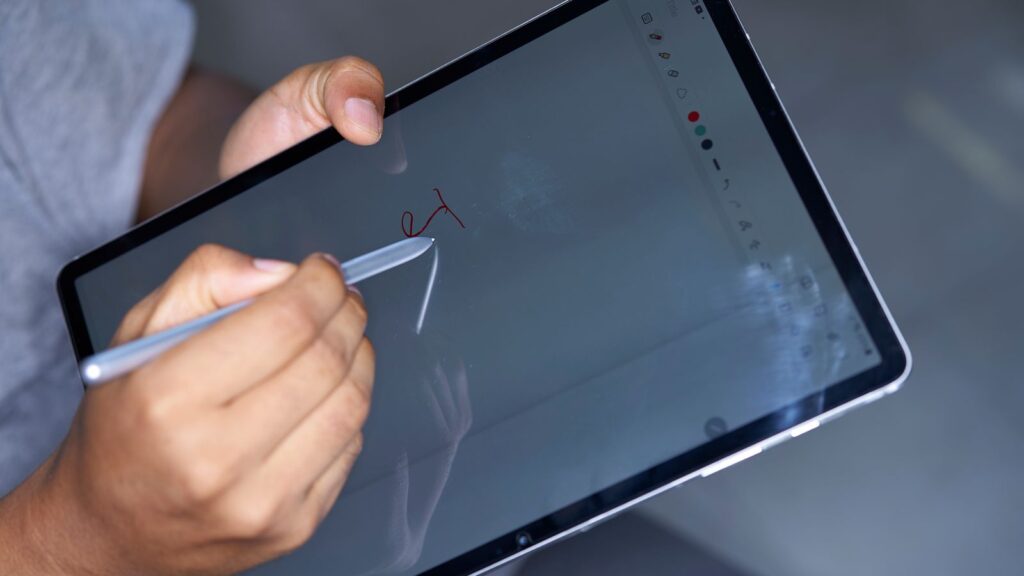
These two apps are grouped together because they serve the same core purpose: turning a tablet and stylus into a digital notebook for handwriting, diagrams, and annotated PDFs.
Strengths
Both apps offer smooth handwriting input and the ability to annotate PDF lecture slides or documents. Notability is known for audio recording that syncs with handwritten notes, useful for reviewing a lecture alongside what was written at the time.
Trade-offs
These apps are tied closely to tablet use; typing and organizing text-based notes on a desktop is less convenient than in text-first apps like Notion or Evernote. Pricing for both has changed several times, so check current terms before committing.
Best for: students who annotate lecture slides or textbooks by hand and want audio-synced note recordings.
Note-taking apps compared
| App | Best at | Handwriting | Real-time collaboration | Platforms |
|---|---|---|---|---|
| Notion | Structured workspaces | No | Yes | Web, Windows, Mac, iOS, Android |
| Evernote | Search and archiving | Limited | Shared notebooks | Web, Windows, Mac, iOS, Android |
| OneNote | Free-form pages | Yes | Shared notebooks | Web, Windows, Mac, iOS, Android |
| Google Keep | Quick capture | Basic | Shared notes | Web, iOS, Android |
| Apple Notes | Built-in convenience | Yes (iPad) | Shared notes and folders | iOS, iPadOS, Mac, web via iCloud |
| Obsidian | Linked ideas | No | Not built in | Windows, Mac, Linux, iOS, Android |
| GoodNotes / Notability | Tablet handwriting | Yes | Limited | Mainly iPad and iPhone |
Choosing based on collaboration needs
For teams and classmates working on shared material, collaboration features vary significantly. Notion supports shared, real-time editing of the same page, making it suitable for group projects and team wikis. Google Keep and Apple Notes allow simple sharing of individual notes. Evernote and OneNote allow shared notebooks. Obsidian, GoodNotes, and Notability are built primarily for individual use and require extra setup or third-party services to share work with others.
How to choose the right app in five questions
- Do you write by hand? If yes, start with OneNote, GoodNotes, Notability, or Apple Notes on iPad.
- Do you mostly capture short notes? Google Keep or Apple Notes will feel fastest.
- Do you need notes tied to tasks and projects? Notion is built for that.
- Will you search a large archive for years? Evernote or Obsidian handle long-term archives well.
- Do you use devices from different makers? Choose a cross-platform app and avoid ones tied to a single ecosystem.
Students have a few extra considerations, such as lecture recording and free education plans. Our separate guide to the best note-taking apps for students covers those in detail.
Tips for getting more out of any note-taking app
- Keep one main app. Splitting notes across several tools is the fastest way to lose them.
- Use a consistent naming pattern, such as date plus topic, so search works reliably.
- Review notes weekly. Five minutes of tidying keeps an archive useful instead of overwhelming.
- Export occasionally. A periodic export protects you if a service changes its plans or shuts down.
Frequently asked questions
What is the best free app for taking notes?
For most people, OneNote is the most capable free option, since it combines typing, drawing, and organization without a paid plan. Google Keep and Apple Notes are also free and excellent for quick notes.
What is the best app for lecture notes?
If you type, OneNote or Notion work well. If you write on a tablet, GoodNotes or Notability let you annotate the lecture slides directly, and Notability can record audio alongside your writing.
Is it worth paying for a note-taking app?
Only if a paid feature solves a real problem, such as syncing more devices, searching scanned documents, or collaborating with a team. Many people never outgrow a good free app.
Conclusion
There’s no single best note-taking app, only the best fit for a specific workflow. Students juggling classes and handwritten lectures may lean toward OneNote or GoodNotes, while those managing group projects might prefer Notion. Professionals archiving large amounts of reference material often find Evernote’s search worth the cost, and researchers building long-term, interconnected knowledge bases tend to favor Obsidian. For quick, low-effort capture, Google Keep and Apple Notes remain hard to beat. Matching the app’s core strength to the task at hand is the most reliable way to choose.